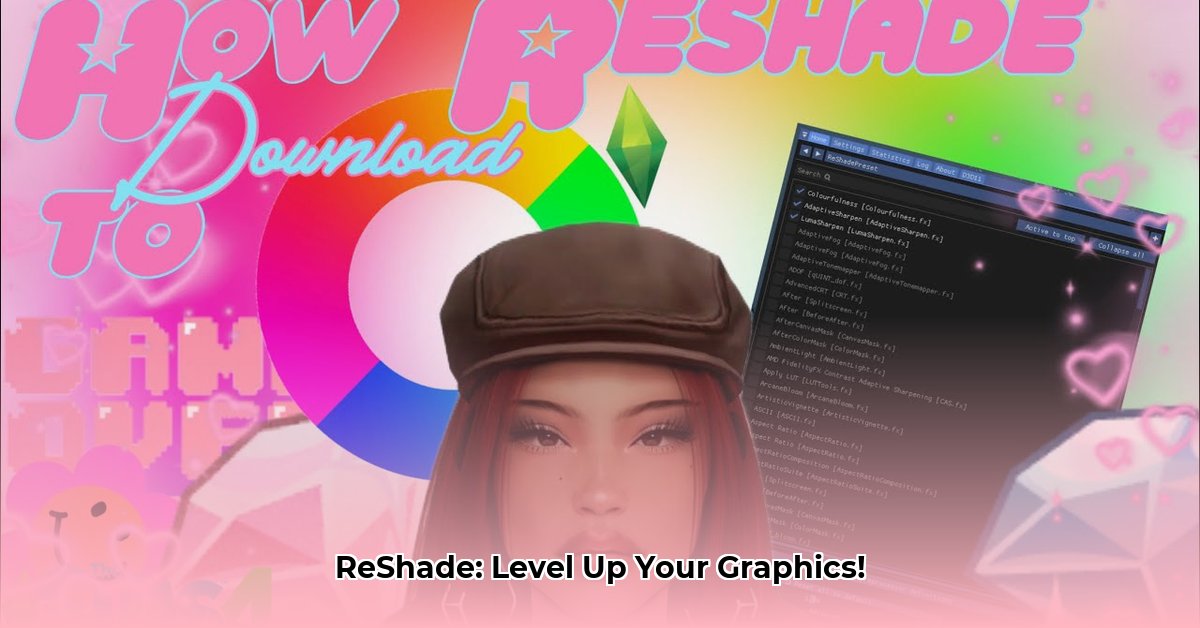
Want to enhance your gaming experience with stunning visuals? ReShade is a powerful tool that adds post-processing effects to your games, dramatically improving their appearance. This guide provides a clear, step-by-step process for downloading, installing, and configuring ReShade, even for users with limited technical experience. We'll also cover troubleshooting common problems and optimization techniques.
Downloading ReShade: A Quick and Easy Process
First, you need to download the ReShade installer. This is a straightforward process, taking only a few minutes.
Navigate to the Official Website: Open your web browser and search for "ReShade download." The official website (https://reshade.me/) should be among the top results. It's crucial to download from the official source to avoid malicious software.
Download the Latest Stable Release: Locate the download section of the website and choose the "latest stable release." Using the stable release minimizes the risk of encountering bugs or instability.
Save the Installer: Once you've selected the correct version, click the download button. The installer will download as a small executable file (usually a
.exefile). This indicates a successful download.
Installing ReShade: A Simple, Step-by-Step Approach
Installing ReShade involves selecting your game's executable file, which is the file that launches your game. This process is crucial for ReShade to correctly integrate with your game.
Locate Your Game's Executable: Open the folder where your game is installed. Locate the executable file, typically ending in ".exe" (e.g.,
game.exe). Don't confuse this with any launchers or shortcut files. This step is critical for ReShade's successful operation.Run the ReShade Installer: Double-click the downloaded ReShade installer file. The installer window will appear, guiding you through the installation process.
Select Your Game's Executable: The installer will prompt you to browse to your game's executable file. Navigate to the location you found in Step 1 and select the
.exefile.Choose Your Graphics API: ReShade supports DirectX, OpenGL, and Vulkan. Select the API your game uses. Most modern games use DirectX 11 or Vulkan. Consult your game's documentation if unsure. Selecting the wrong API will prevent ReShade from functioning correctly.
Select Shaders (Optional): ReShade offers a vast library of shaders (pre-made visual effects). You can select specific shaders during installation or add them later. For beginners, it's recommended to start with a small selection to avoid performance issues.
Install ReShade: After selecting your preferences, click the "Install" button. ReShade will now install necessary files and integrate itself into your game. The installation time is usually brief.
Configuring ReShade: Customizing Your Visuals
ReShade allows extensive customization to tailor the visuals to your preferences. This involves exploring presets and fine-tuning individual settings.
Launch Your Game: Start the game you selected during installation. You may see a brief ReShade loading screen upon launch. This confirms a successful installation.
Explore Presets: ReShade often includes pre-made presets. These are combinations of shaders optimized for various visual styles. Experiment with different presets to find one you like.
Adjust Individual Shader Settings: Once you've found a suitable preset, you can fine-tune the individual shaders' settings for a more personalized look. Each shader has its own parameters.
Save Your Custom Settings: Once you have a visual style that satisfies you, save your customized settings as a new preset for easy access in the future. This is done within the ReShade interface, usually accessible by pressing a hotkey (often Shift+F2).
Troubleshooting Common ReShade Issues
While ReShade is generally easy to use, some problems may occur. Here are solutions for common issues:
ReShade Doesn't Load: Ensure you installed ReShade correctly and selected the proper executable file. Verify the installation path and any potential conflicts with other programs.
Performance Issues: If your game runs slower, reduce the number of active shaders or lower their intensity. High-quality shaders can be demanding.
Game Crashes: Game crashes may indicate incompatibility. Try disabling individual shaders to identify the problematic one. Consult online forums for solutions specific to your game and ReShade version.
Visual Glitches/Artifacts: Shader conflicts or version mismatches can cause visual artifacts. Try updating your graphics drivers and shaders.
Key Takeaways:
- Download from the official source: Avoid potential malware.
- Start with a few shaders: Avoid performance issues, especially on older hardware.
- Experiment with presets: Explore a range of visual styles before fine-tuning individual settings.
This comprehensive guide provides a solid foundation for using ReShade. Experiment with different settings and shaders to achieve the perfect balance between visual fidelity and performance. Remember to always download shaders from trusted sources. Happy gaming!
⭐⭐⭐⭐☆ (4.8)
Download via Link 1
Download via Link 2
Last updated: Tuesday, April 29, 2025